How to Connect YouTube Live Chat to Chat Games
YouTube chat belongs to one live stream, not to your channel, so connecting works a little differently from Kick or Twitch. You give the dashboard a stream link or your @handle, and it finds the chat for that stream.
Connect it
Pick your @handle or a stream link
Your @handle works before you go live. A stream link needs a stream that is live or scheduled: press Share under it and copy the link. A
youtube.com/live/...,youtu.be/...orwatch?v=link all work.Paste it in the dashboard
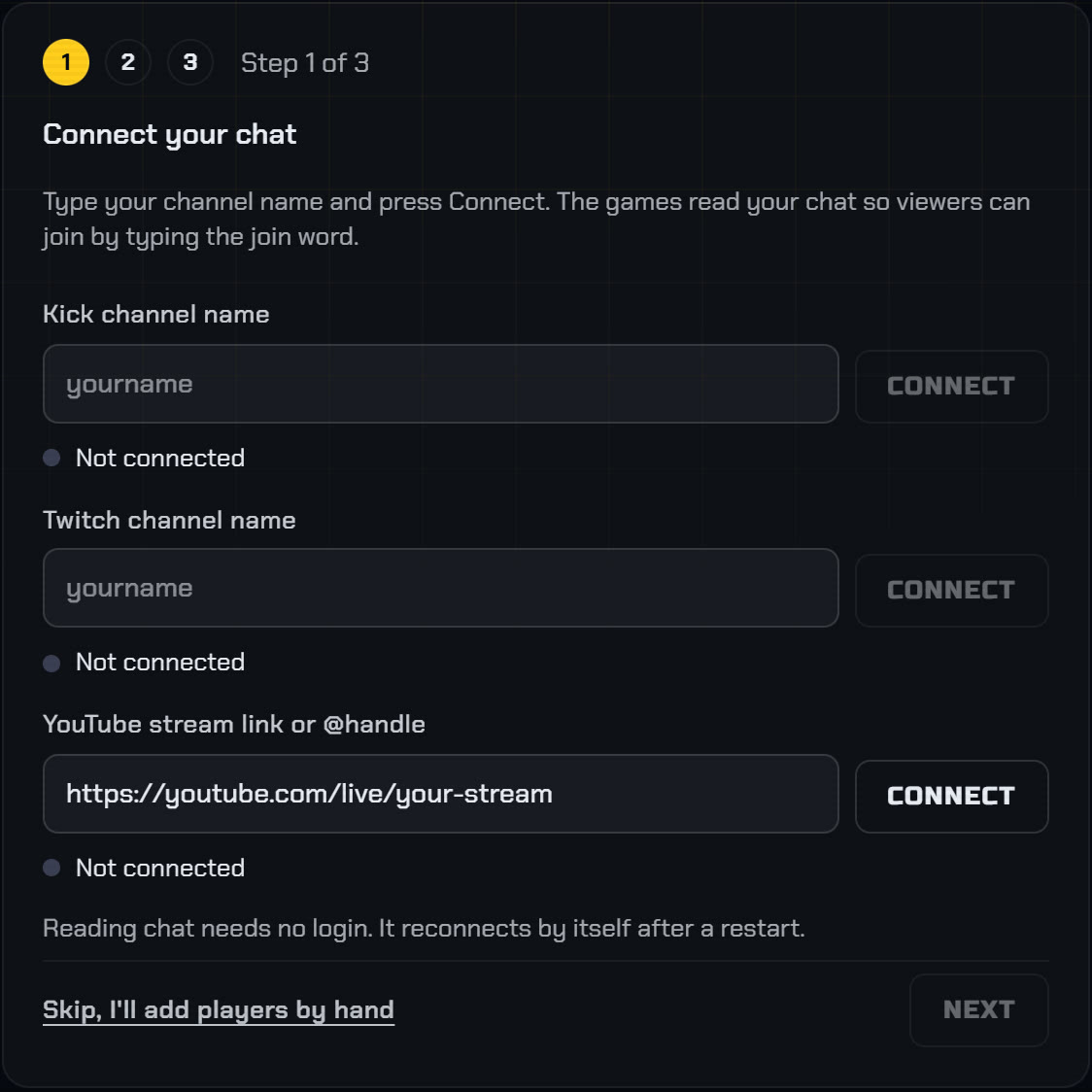
Paste it into "YouTube stream link or @handle" and press Connect. It's the first step of the setup guide, and later it lives on the Setup tab. Chat has to be turned on for the stream you go live with.
Check the status line
An @handle reads "Connected · Chat starts when you open a lobby." When you open a lobby, the dashboard finds your live stream and starts reading its chat. Type the join word yourself to test it.
Rather watch it? The YouTube Live setup video runs four minutes, from connecting chat to a first round.
Link or @handle?
Your @handle is easier to remember, and it keeps working from one stream to the next: when you open a lobby, the dashboard looks through your channel's newest uploads for a live stream, and a scheduled one counts until you go live. If your stream ends, it keeps looking and picks chat back up when you go live again. It only finds public streams, though.
The stream link is more precise. Use it when your stream is unlisted, when you run more than one live stream at a time, or when the handle lookup can't find your stream.
What the status messages mean
- Chat starts when you open a lobby
- Your @handle is connected. Nothing is read until you open a lobby, so you can connect before you go live.
- No live stream on this channel yet
- Your channel isn't live, or the stream is unlisted. While a lobby is open, the dashboard looks again every 20 seconds. Paste the stream link to skip the search.
- This is a scheduled stream that is not live yet
- The dashboard found your scheduled stream. Chat starts flowing once you go live.
- The stream ended. Looking for a new one every 20 seconds.
- Your broadcast finished. With an @handle the dashboard reconnects on its own when you go live again.
- That video isn't live right now
- The link points to a stream that hasn't started or has ended. It looks again when you open a lobby. With a link, an ended stream stays ended: paste the new link or use your @handle.
- Chat is turned off for that stream
- Turn live chat on in YouTube Studio, then press Reconnect.
- Couldn't find the YouTube channel
- Check the spelling of the @handle, including the @.
- YouTube's daily limit is used up
- YouTube caps how much chat we can read per day. Add names by hand in the dashboard until it resets.
Good to know
- Chat is read only while a lobby or round is open. Anything typed before you open the lobby doesn't count
- YouTube chat reaches the game about 1.5 seconds after a viewer types, so give late joiners a moment before you press Start
- A Super Chat that starts with the join word enters that viewer like any other message
- Channel members count as subscribers when you tick "Subscribers only" under Joining rules on the Play tab
- You can connect Kick and Twitch at the same time, and one lobby takes entries from all three
Next: add the overlay to OBS, then run a giveaway in YouTube Live chat.
Run it on your next stream
Ten chat games, one OBS browser source. See the games.