How to Add Chat Games to OBS
CommunityGames runs as one browser source in OBS or Streamlabs. You add it once, leave it on, and it stays empty until a round starts. Here's every step, as it looks on screen.
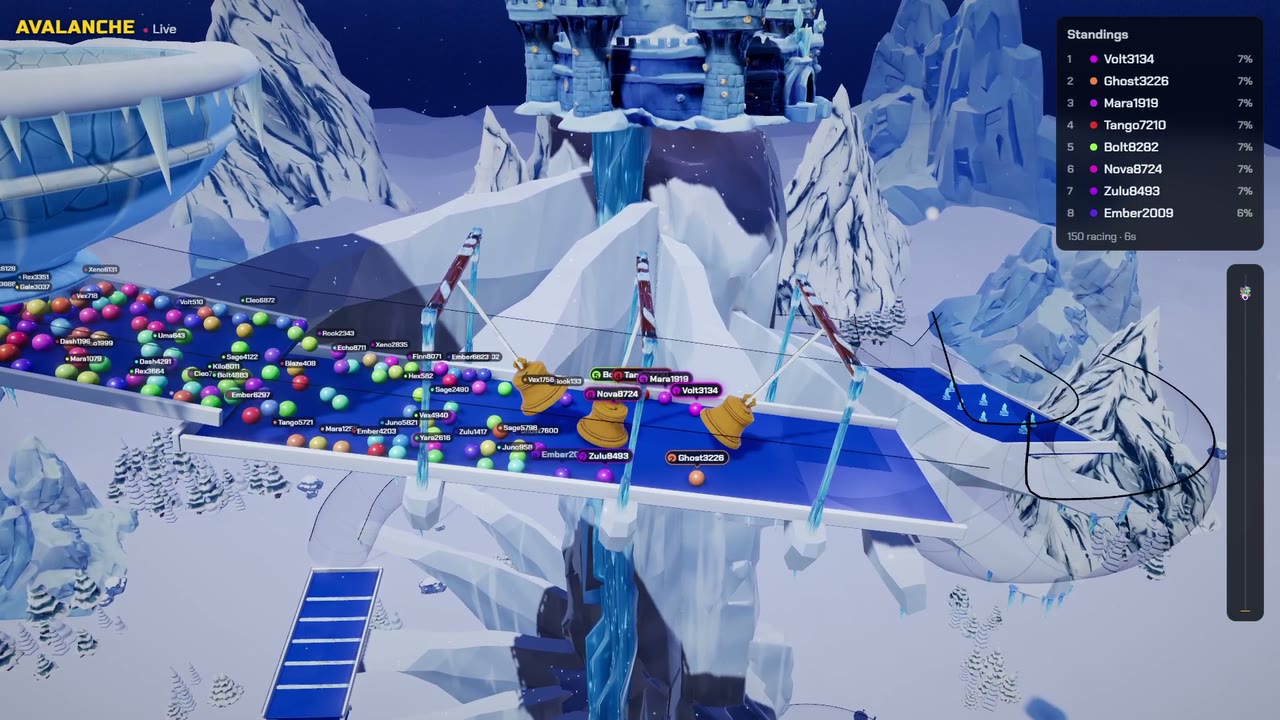
Watch the whole setup
Each video goes from the dashboard to a first round, in OBS and in Streamlabs. Pick your platform.
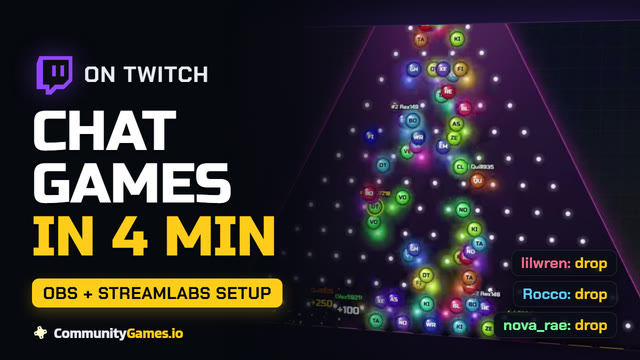
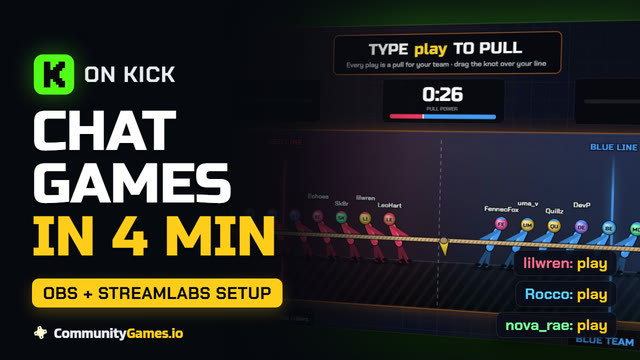
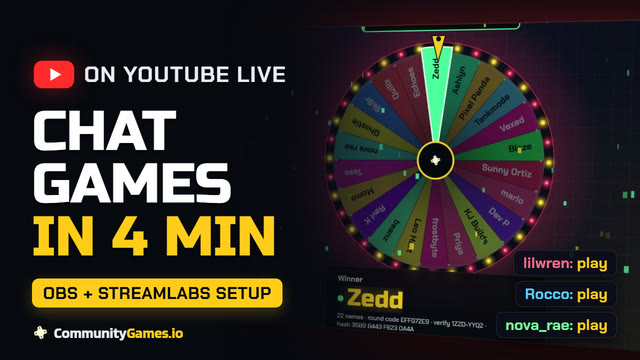
Browser source or window?
A browser source is the better choice in OBS and Streamlabs: one link, a see-through background, and game sounds go through your mixer. Capturing a window works in any streaming app, but the background isn't see-through and the window has to stay open.
Add a browser source in OBS
Copy your overlay link
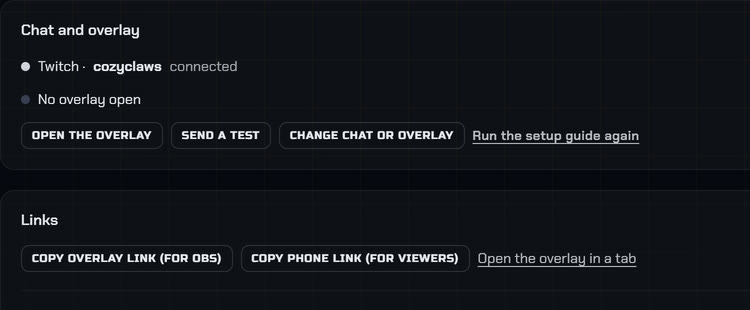
On your dashboard, open Setup and press "Copy overlay link (for OBS)". The setup guide offers the same button the first time you sign in.
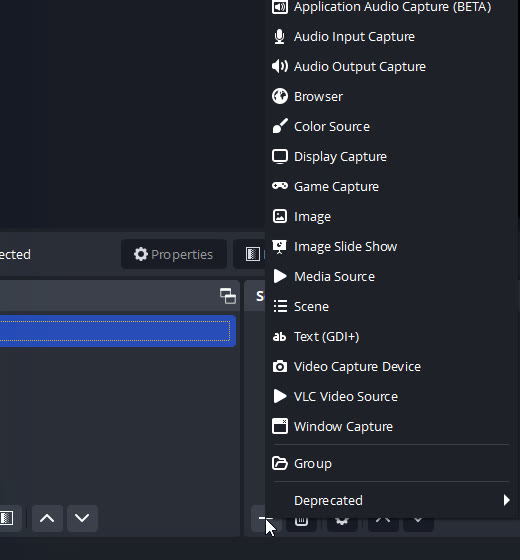
Add a Browser source
In OBS, press + under Sources and choose Browser.
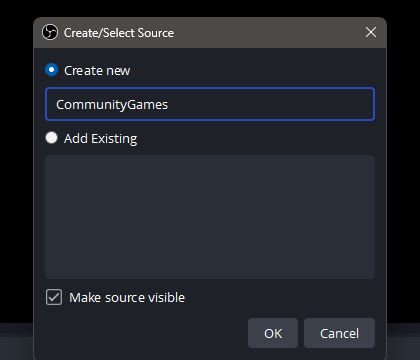
Name it
Call it CommunityGames, keep "Make source visible" ticked and press OK.
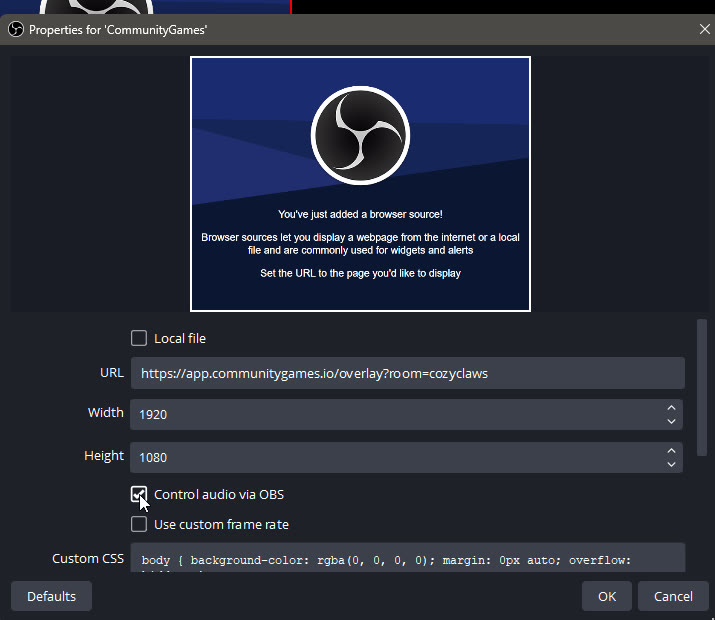
Paste the link and set the size
Paste the link into URL. Set Width 1920 and Height 1080, then tick "Control audio via OBS" so viewers hear the game sounds.
Keep it running
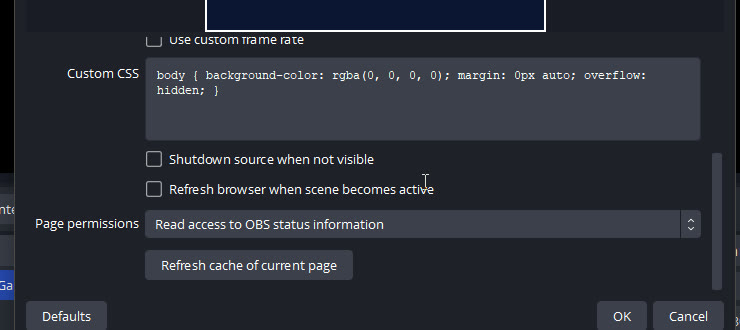
Scroll down and leave "Shutdown source when not visible" unticked, so the overlay stays connected when you switch scenes. Press OK.
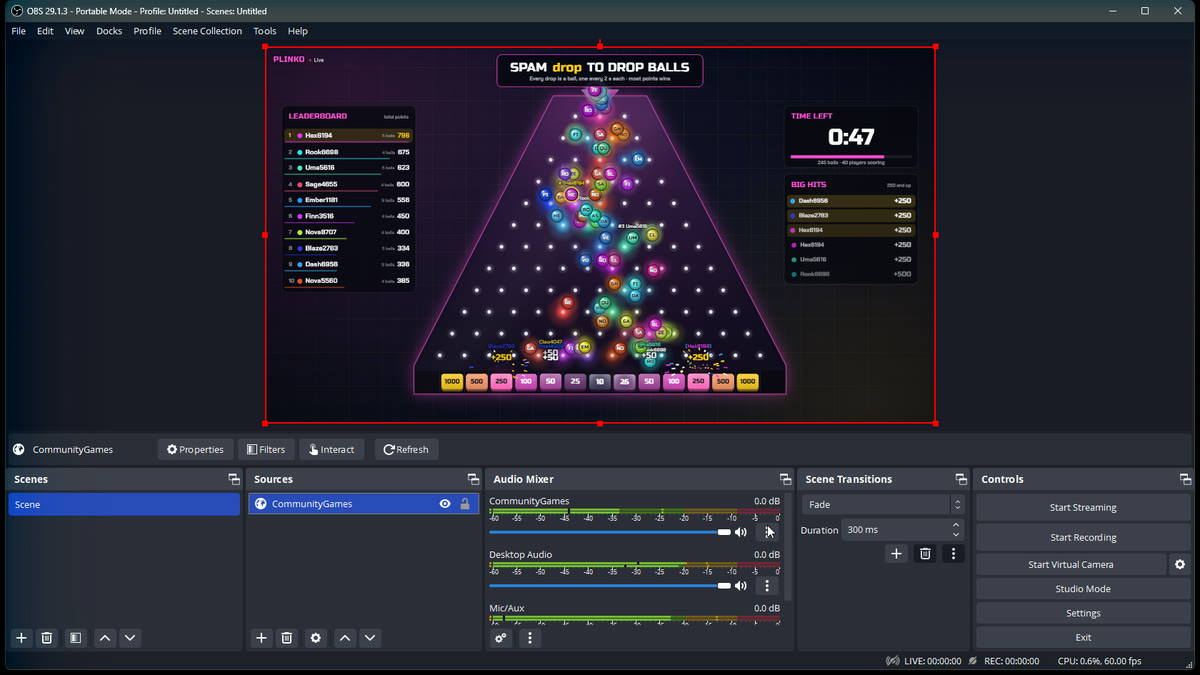
Check the scene
The overlay sits on top of your scene with a see-through background. Between rounds it shows nothing, so you can leave it there all stream.
Same thing in Streamlabs
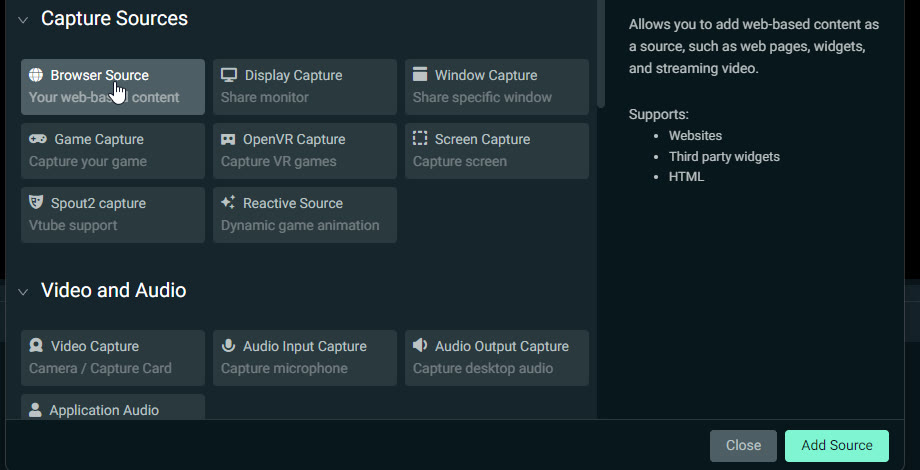
Add a Browser Source
In Streamlabs, press + next to Sources, pick Browser Source and press Add Source. Name it and press Add Source again.
Untick Shutdown source
Streamlabs ticks "Shutdown source when not visible" for you. Untick it, or the overlay disconnects whenever you switch scenes.
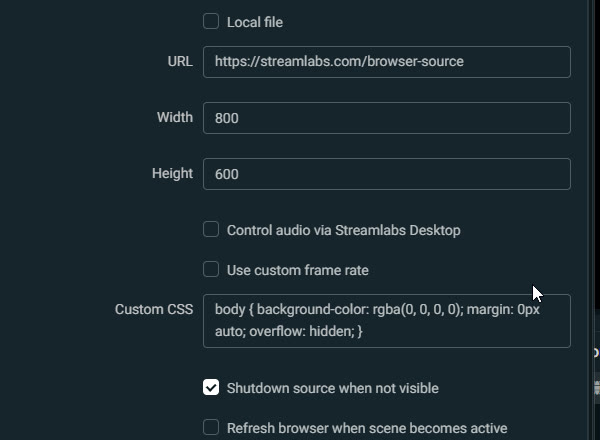
Paste the link and set the size
Paste the overlay link into URL, set 1920 by 1080 and tick "Control audio via Streamlabs Desktop". Close the settings.
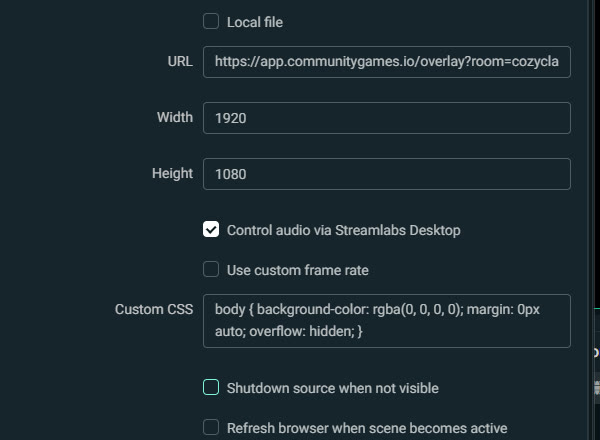
Check the scene
The game shows in your Streamlabs scene when a round runs.
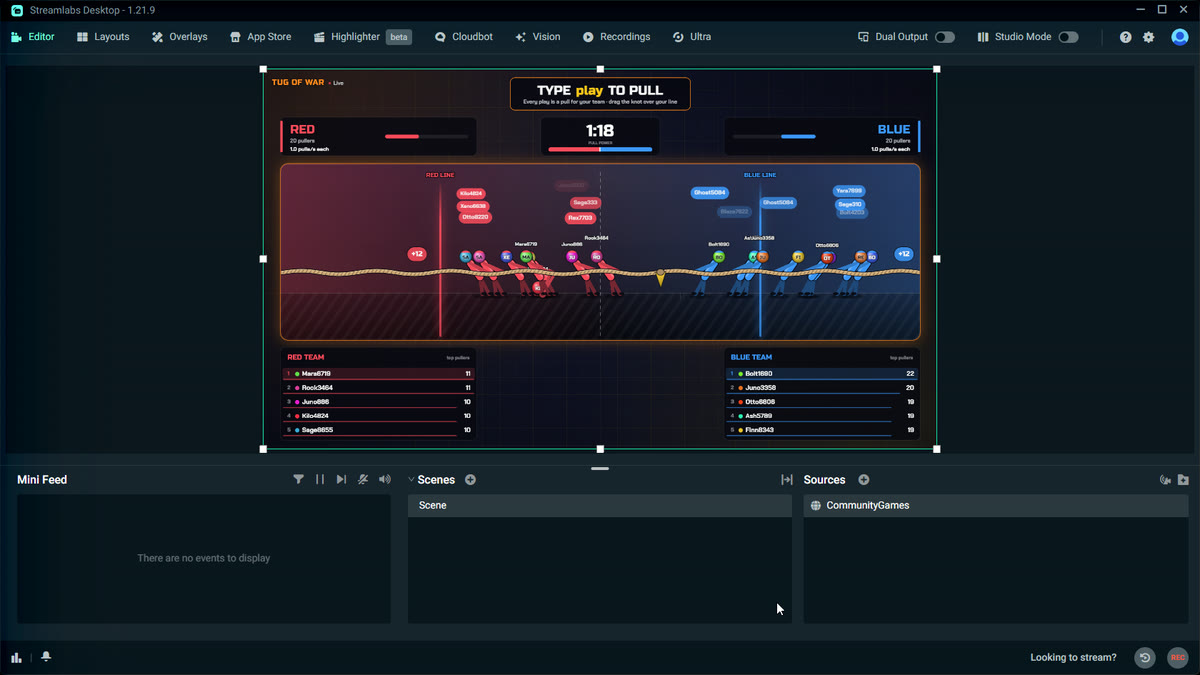
Or capture the overlay window
Open the overlay in a window
On your dashboard, press "Open the overlay". It opens in its own browser window. Click inside it once, so the browser lets it play sound.
Add a Window Capture
In OBS, press + under Sources, pick Window Capture and name it. Under Window, pick CommunityGames Overlay.
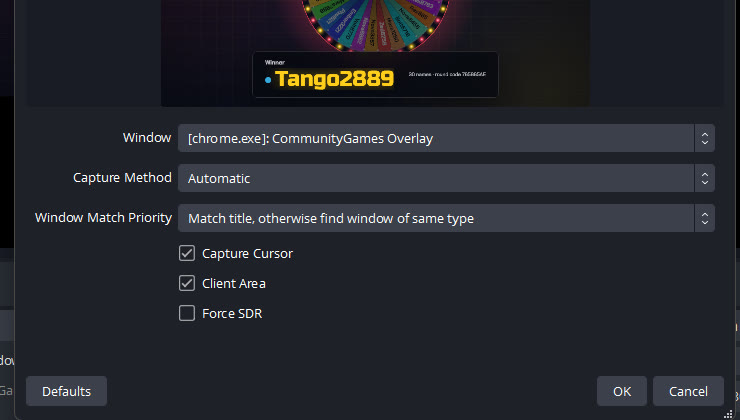
Keep the window open
The game is now in your scene. Don't minimise that window, or OBS loses the picture.
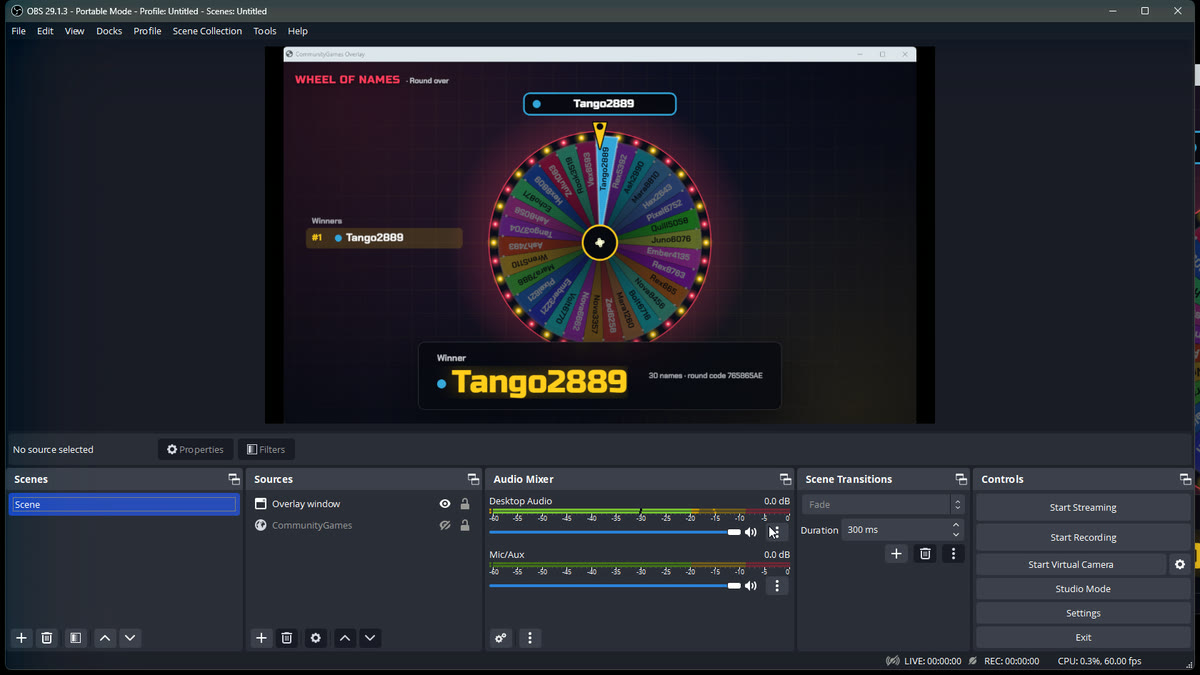
Test it before you go live
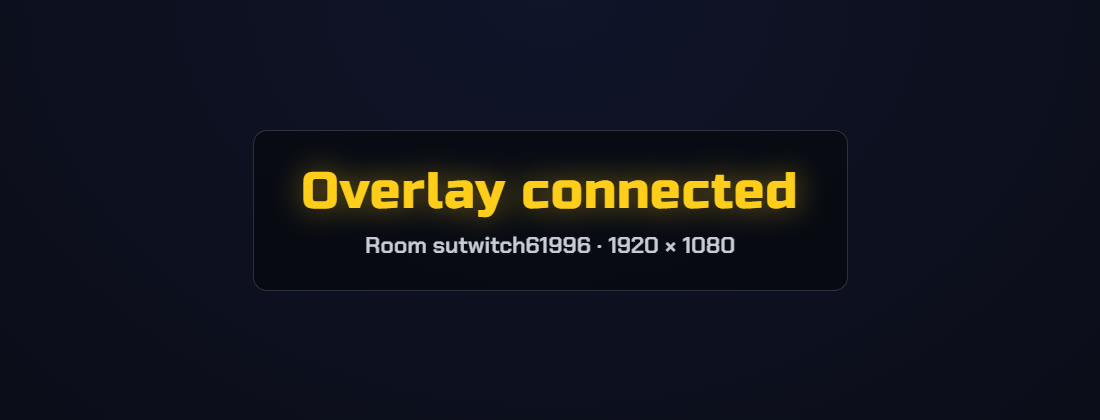
On Setup, press "Send a test". A test card shows on your overlay for five seconds, with a sound, and the dashboard tells you how many overlays received it. If it says none, check the URL in the browser source.
Good to know
- The overlay shows nothing between rounds, so it can sit on top of your gameplay all stream
- Switching games in the dashboard needs no change in OBS
- Mods can run games from the mod link without your account
- Viewers can follow on their phones from the phone page
On YouTube? Connect your YouTube Live chat first.
Next: run your first giveaway.
Run it on your next stream
Ten chat games, one OBS browser source. See the games.